Theming
The editor ships polished dark and light themes and follows the OS by default. Override a handful of CSS variables to make it match your brand.
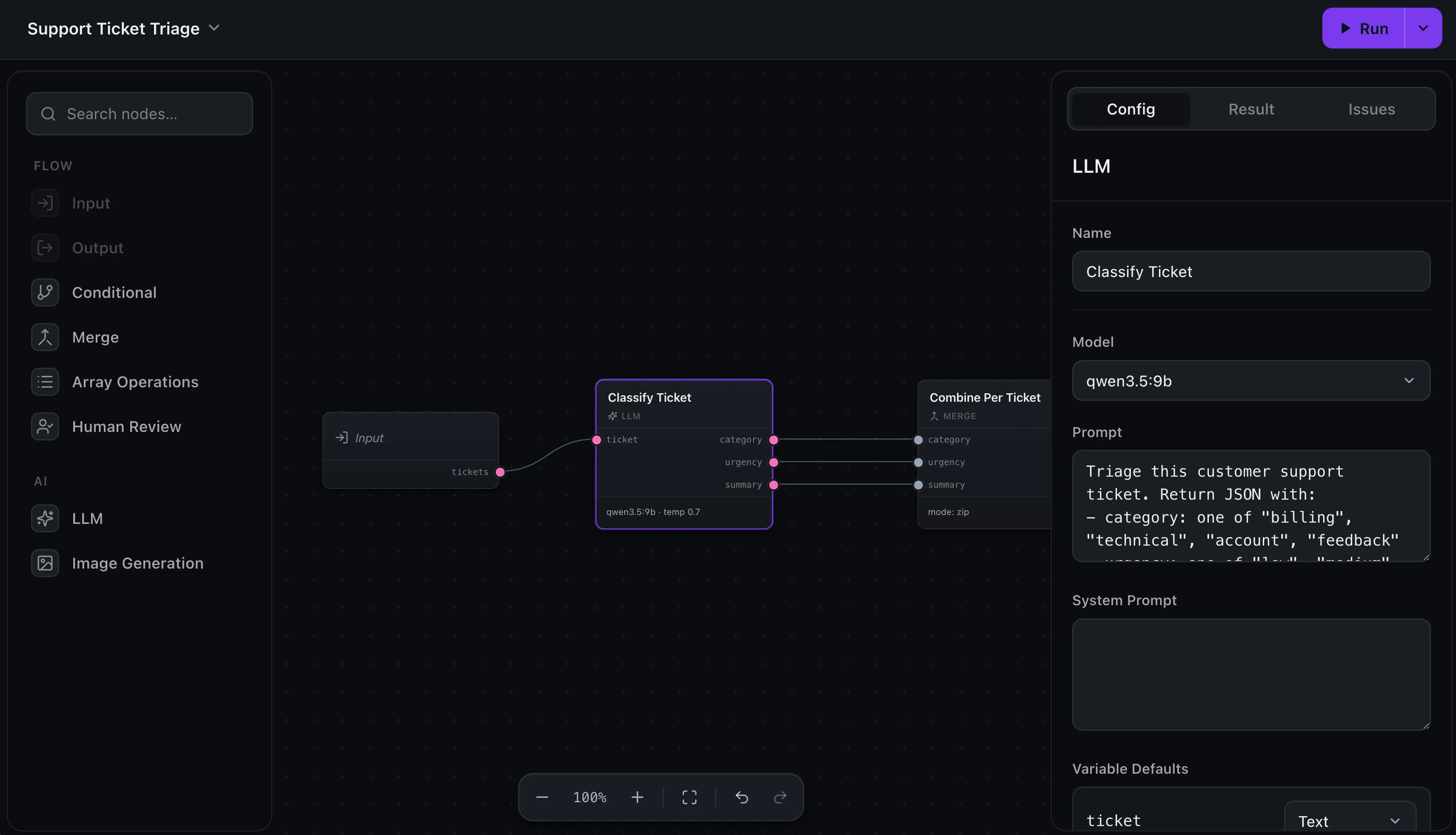
The editor comes with two themes — a deep dark one and a clean light one — and follows the operating system out of the box, so it looks right in your app without any work. This page is for when you want to go further: tint it with your brand’s accent color, or adjust its surfaces, text, and ports so it feels like a native part of your product rather than a dropped-in widget.
Dark, light, or follow the OS
The theme is set with the theme option, covered in
Editor setup. The short version:
it’s 'auto' by default (follows the OS and tracks changes live), and you can
pin 'dark' or 'light', or switch at runtime to mirror your own app’s toggle:
createWorkflowEditor(element, { theme: 'auto' })

// later — e.g. when your app's theme changes:
editor.setTheme('dark')
That gets you the built-in palettes. Everything below is about replacing the colors in those palettes with your own.
Match your brand
Every color in the editor is a CSS variable, scoped to the element you mount it
into — the editor tags that element with the wf-shell class and sets its colors
there, so they never leak into the rest of your page. To recolor the editor, you
override those variables on your own mount element, which keeps the override
specific enough to win over the defaults.
The accent is the one to start with — it’s the color used for the Run button, selection highlights, focus states, and links. Point the accent group at your brand color:
#editor {
  --wf-accent: #7c3aed; /* focus borders, links, selection, checkboxes */
  --wf-accent-bg: #7c3aed; /* the primary (Run) button fill */
  --wf-accent-bg-hover: #8b5cf6; /* primary button on hover */
  --wf-accent-soft: rgba(124, 58, 237, 0.12); /* soft highlights, selected rows */
  --wf-accent-ring: rgba(124, 58, 237, 0.35); /* the focus ring around inputs */
}
The focus ring is its own variable
The glow around a focused input is drawn by the editor (not your browser), and it
uses --wf-accent-ring — a translucent color that does not follow
--wf-accent automatically. If you change the accent but the focus ring stays the
old color, it’s because --wf-accent-ring is still set to the default. Give it a
faded version of your brand color, as above, and it’ll match.
Theme each mode separately
The override above applies in both dark and light. Because your mount element also
carries a data-theme attribute ("dark" or "light", resolved from your
theme option), you can give each theme its own values when one color doesn’t
read well on both backgrounds:
#editor[data-theme='dark'] {
  --wf-accent: #a78bfa;
  --wf-accent-ring: rgba(167, 139, 250, 0.35);
}

#editor[data-theme='light'] {
  --wf-accent: #7c3aed;
  --wf-accent-ring: rgba(124, 58, 237, 0.3);
}
A brand color often needs to be a touch lighter on a dark canvas and a touch deeper on a light one — this is how you tune each.
What else you can theme
The accent is the headline, but the same approach works for the rest of the
palette. The ones you’ll reach for most — override these under a data-theme
selector, since their right value depends on the background:
#editor[data-theme='dark'] {
  /* Surfaces — the canvas and the panels that float on it */
  --wf-bg-canvas: #0a0b10;
  --wf-bg-surface: #0f1115;

  /* Text */
  --wf-text: rgba(245, 246, 248, 0.96);
  --wf-text-secondary: rgba(245, 246, 248, 0.66);

  /* Borders */
  --wf-border-default: rgba(255, 255, 255, 0.1);

  /* Port colors — the dot color per data type */
  --wf-port-string: #f472b6;
  --wf-port-number: #60a5fa;
}
The font is a single shared token, so it doesn’t need the per-theme treatment — set it once to match your product’s typeface:
#editor {
  --wf-font: 'Inter', system-ui, sans-serif;
}
Finding the right variable
Every token is a --wf-* variable on the wf-shell element. The quickest way to
find the one you want is to inspect the editor in your browser’s dev tools, select
the element using the color, and read off its variable name.
Where next
- Layout & header — show, hide, and place the editor’s panels
- Editor setup — sizing, themes, and mounting in any framework
- Custom result rendering — control how a run’s output is displayed