LLM
Send a prompt to a language model and wire its answer into the rest of your workflow.
The LLM node sends a prompt to a language model and hands you back its answer. It’s where the AI in a workflow lives — summarizing, classifying, drafting, or deciding which way the graph should branch. Point it at a model, write a prompt, and wire the result onward.
Write the prompt
Select an LLM node and its settings open in the config panel on the right. The Prompt field there is the message you send the model.
To pull in values from elsewhere in the workflow, drop a variable in curly
braces. The moment you type {ticket}, a matching input port named ticket
appears on the node — wire your data into it, and it’s substituted into the
prompt before the model sees it.
The System Prompt field sets the model’s role and ground rules, and takes the
same {variables}. Variable Defaults let you give any variable a fallback
value, so the node still runs when nothing is wired into it.
Choose a model
The Model dropdown lists the models your app makes available — Wayflow stays provider-neutral, so the same node runs against OpenAI, Claude, a local model, or anything else you connect.
Make it run
Picking a model in the editor is only half of it — the node stays inert until a
matching handler is on your runtime. The LLM node is served by
createLLMHandler, pointed at a provider that wraps your model’s client:
import OpenAI from 'openai'
import { createLLMHandler } from 'wayflow/models'
import { createOpenAIProvider } from 'wayflow/models/openai'
import { createRuntime } from 'wayflow/runtime'

const client = new OpenAI({ apiKey: process.env.OPENAI_API_KEY })

const runtime = createRuntime({
  handlers: {
    llm: createLLMHandler(createOpenAIProvider({ client })),
  },
})
The handler’s key — llm — is the node type it serves, so every LLM node now runs
against that model. The client is any OpenAI-compatible provider, hosted or
local. Providers & models goes deeper —
local backends, routing different models, the options some need — and Running
workflows covers where the runtime runs, in the
browser or on your server.
The response
By default an LLM node has a single output port, response, carrying the model’s reply as text. Wire it into an Output field, another node, or anywhere downstream.
Structured output
Need typed fields instead of free text? Open Output Schema in the config panel and add a field for each value you want back. Each one becomes its own typed output port, and the model is asked to return JSON that matches:
{ "category": "billing", "urgency": 3 }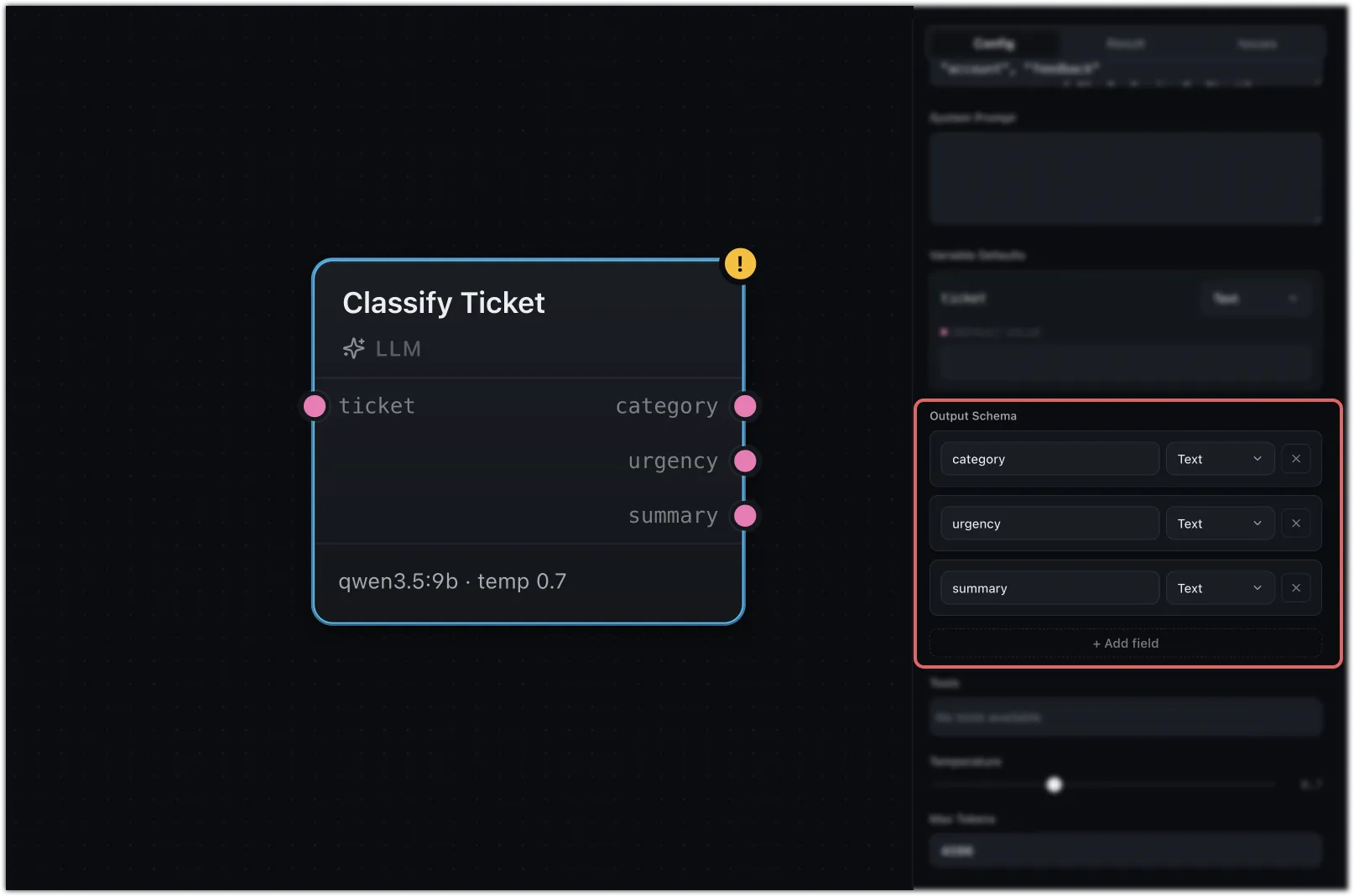
Now category and urgency are separate ports you can branch on or pass along.
See Structured output.
Give it tools
Select Tools in the config panel and the model can call them mid-run — look something up, hit an API, run another workflow — then fold the results into its answer. See Tools.
Send images
Wire an Image into a prompt variable to hand it to a vision-capable model — handy for describing, extracting from, or classifying what’s in a picture.
Tuning
Two dials in the config panel for the model’s behaviour:
- Temperature — higher is more creative, lower more focused and repeatable.
- Max Tokens — the ceiling on how long the response can run.
Where next
- Tools — let the model call your functions
- Structured output — get typed fields back instead of free text
- Map & arrays — run the node once per item in a list